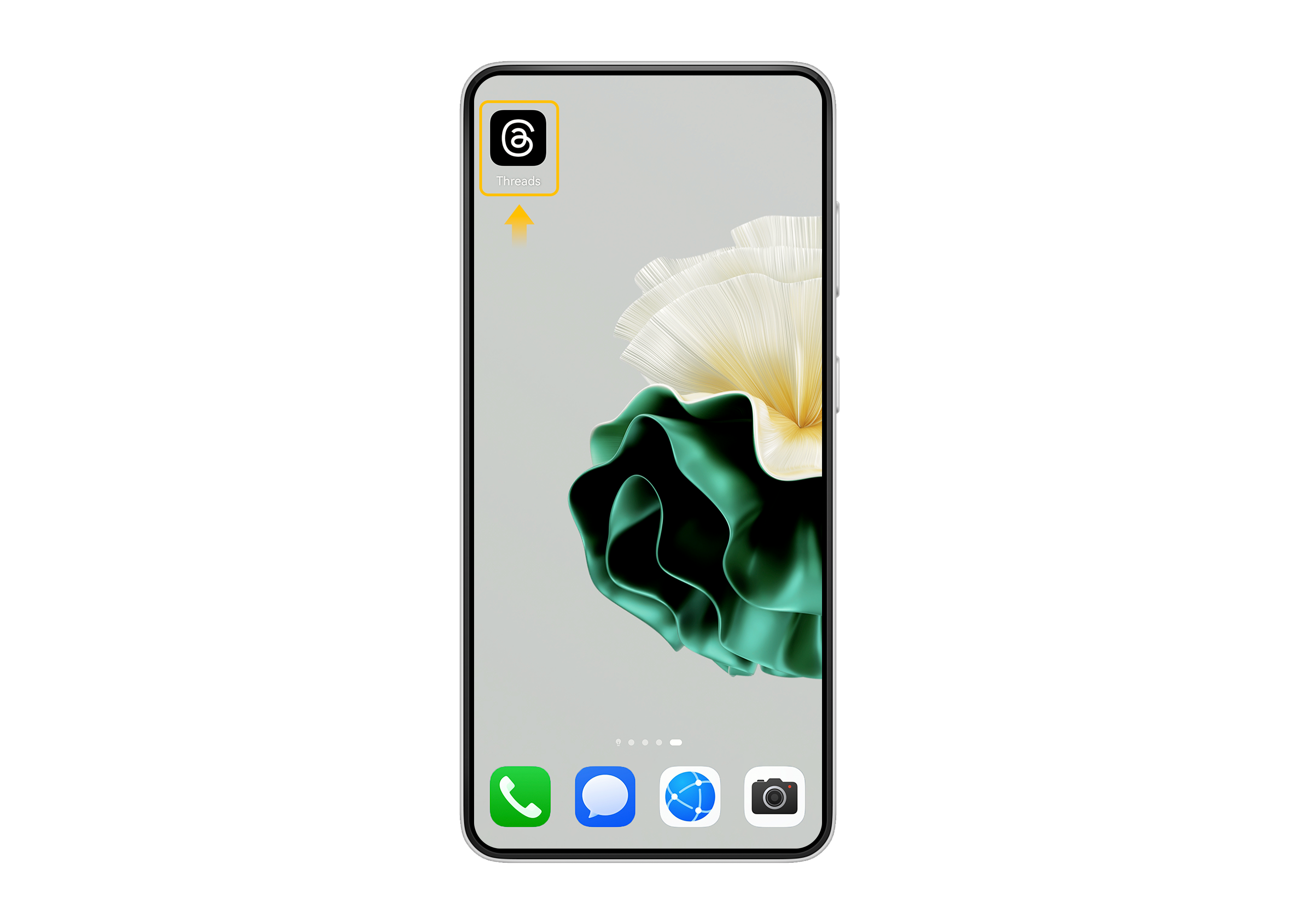
How to install apps on a real device using GBox? Please follow the steps below.
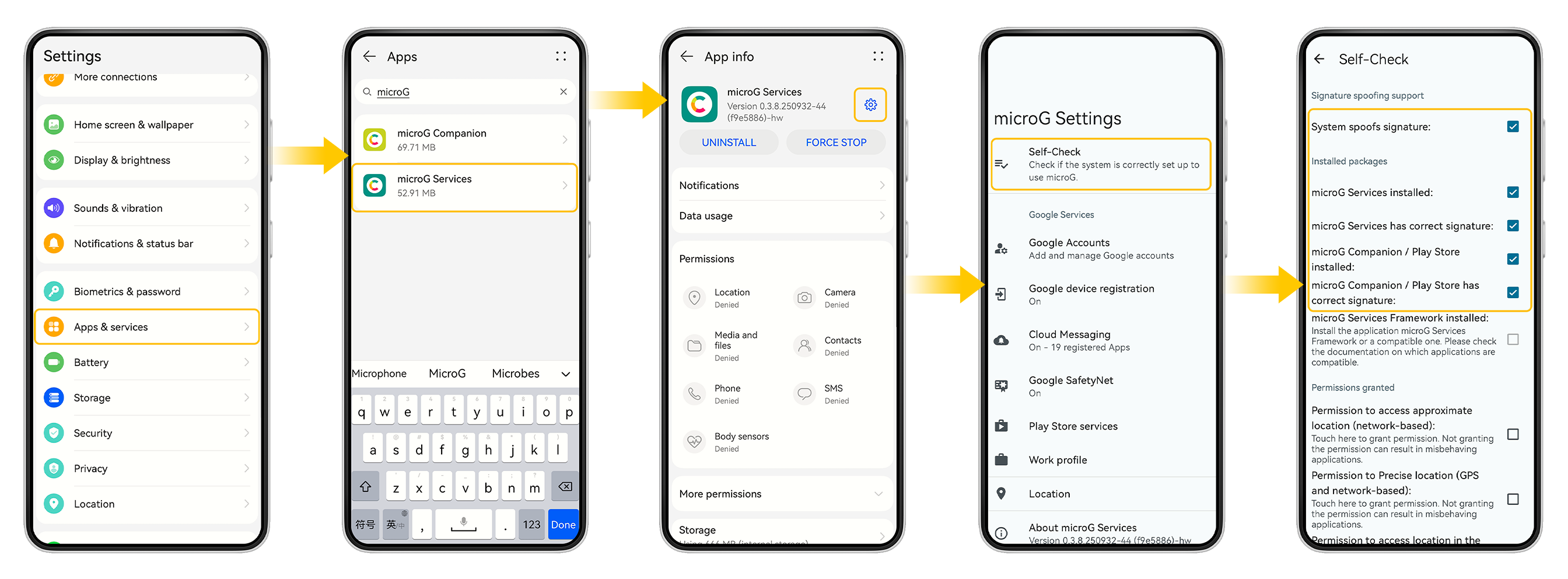
Step 1: Search for and install microG through the device app store.

Step 2: Go to Phone Settings > Apps & Services > microG > microG Settings > Self-Check > Installed Packages, and ensure the first four items are all marked with a √.If microG is already installed, please proceed directly to Step 3.
Step 3: Open GBox > Tap the three horizontal lines in the top right corner > Settings > Advanced Settings
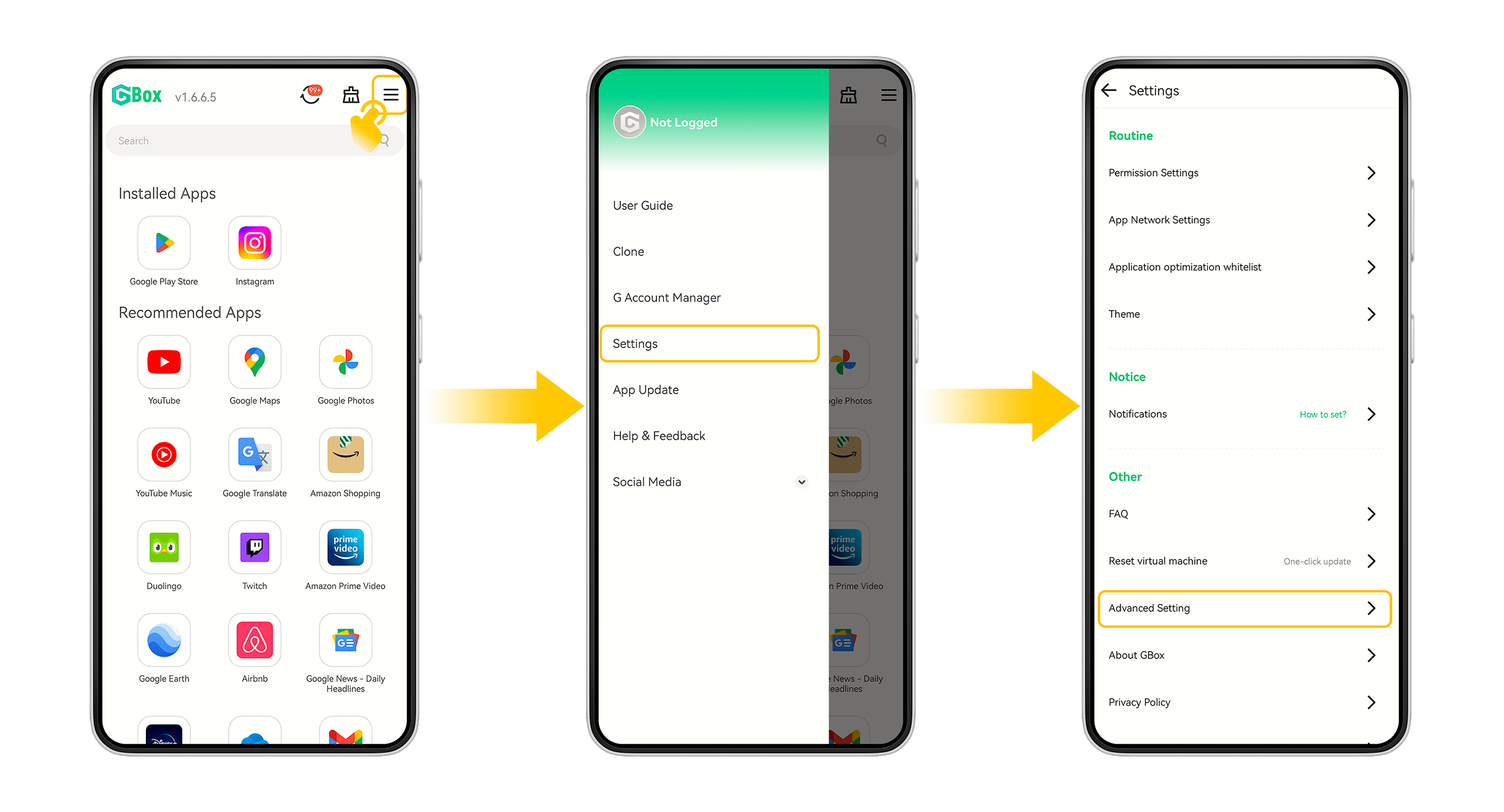
Step 4: Make sure the "Install to device" toggle under Installation Mode is turned on and appears green.If the toggle is greyed out, tap it to turn it on and confirm any pop-up prompts.

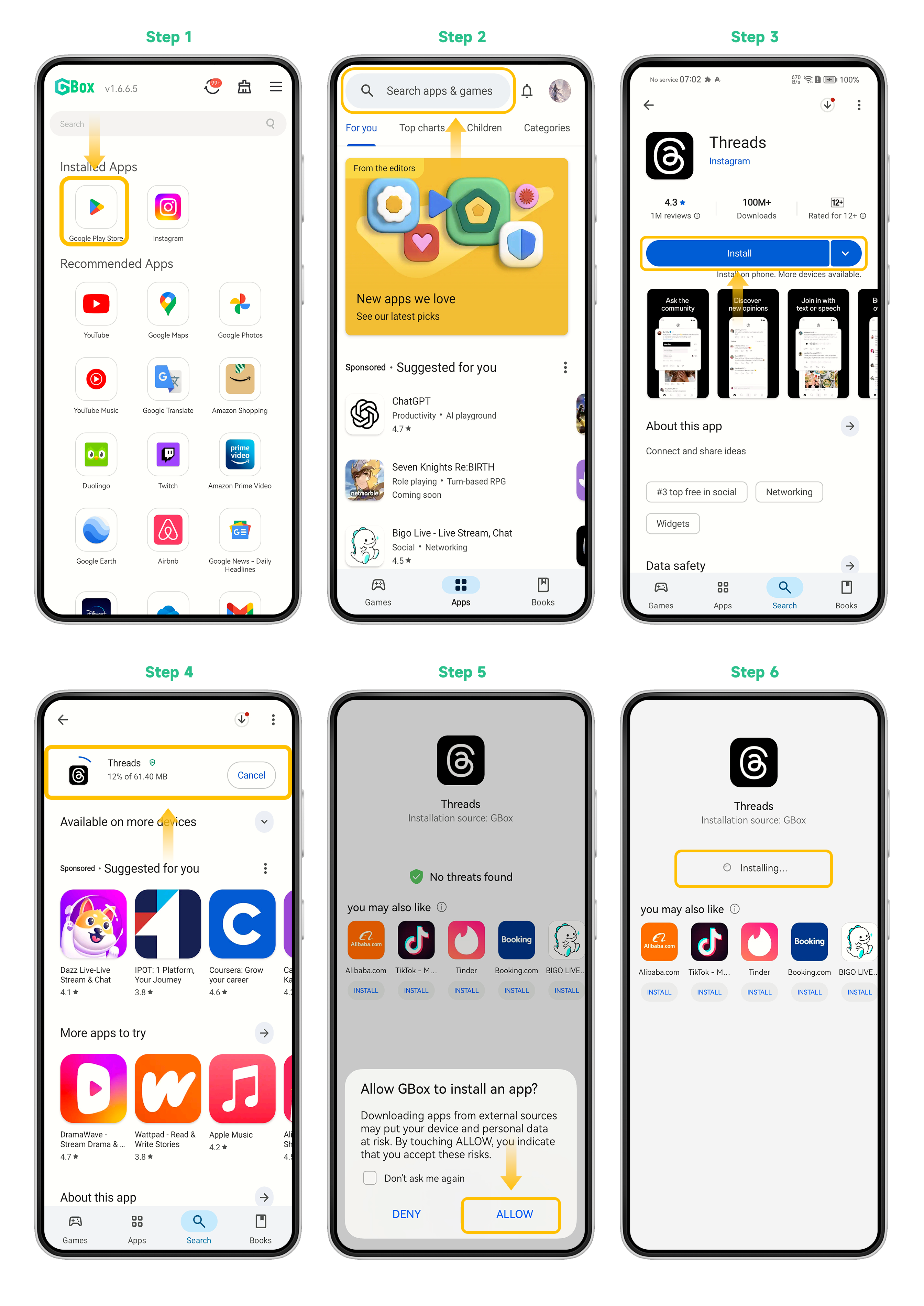
Step 5: Return to the GBox home screen, tap Google Play on the homepage, search for the app and tap Install.Once the installation is complete, you're all set.If the pop-up shown in Image 5 appears, tap Allow, then click the Install button as shown in Image 6, and wait for the installation to complete.
Step 6: Return to the system home screen.Once the app icon appears on the desktop, tap it to launch and start using the app.